My Progress is a powerful module that enables learners to track their development while giving you clear, actionable insights into skill growth, goal achievement, and long-term business outcomes. Built on seven years of experience and over 750,000 mentoring relationships, My Progress reflects what we know to be true: mentoring delivers real impact when it’s intentional, structured, and measurable.
Accessing My Progress
On the Guider navigation bar, click My Progress.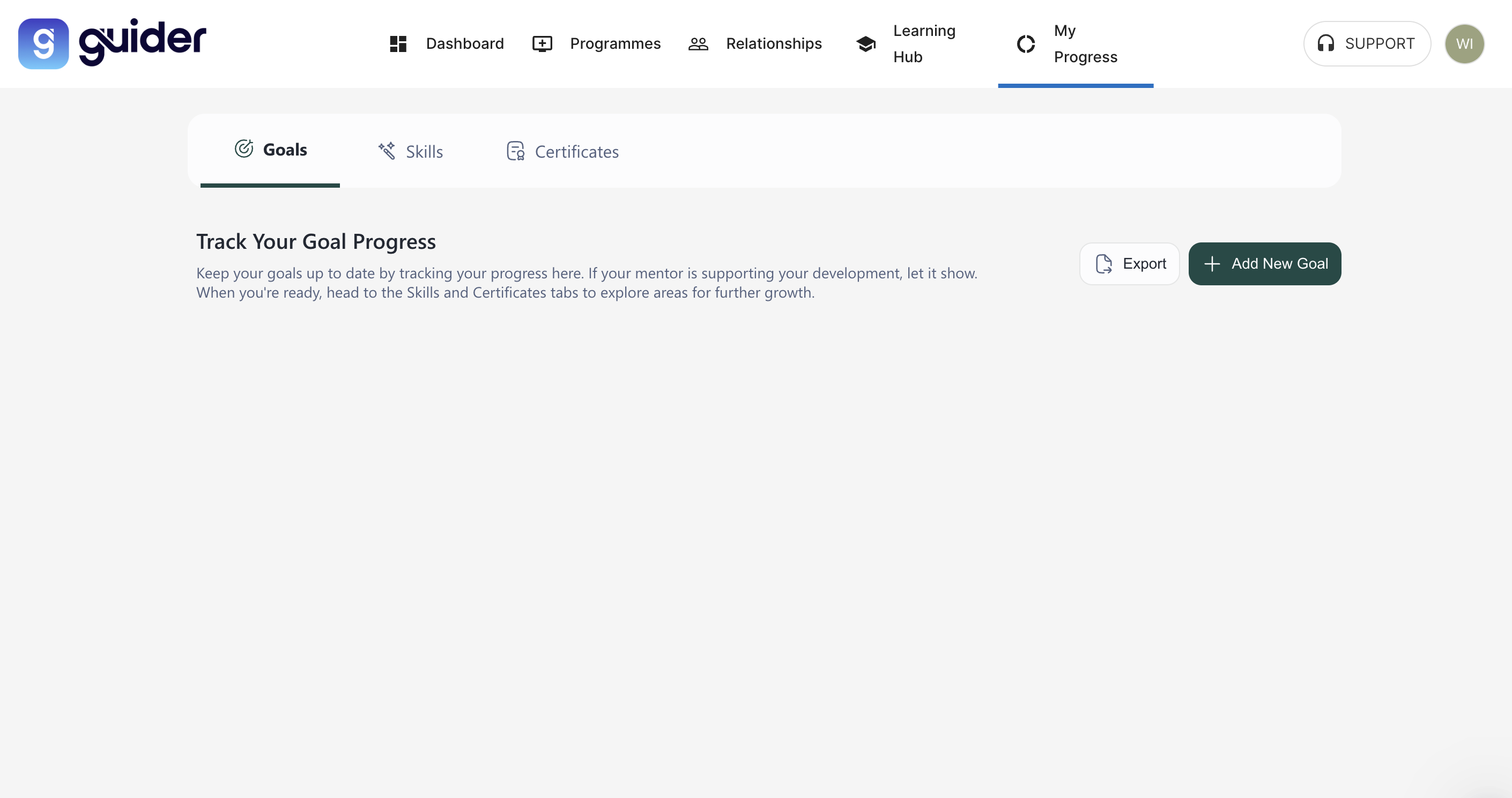
Using My Progress
My Progress contains the following tabs:
Goals
The Goals tab helps users set personal objectives, log updates, and track what they want to achieve.
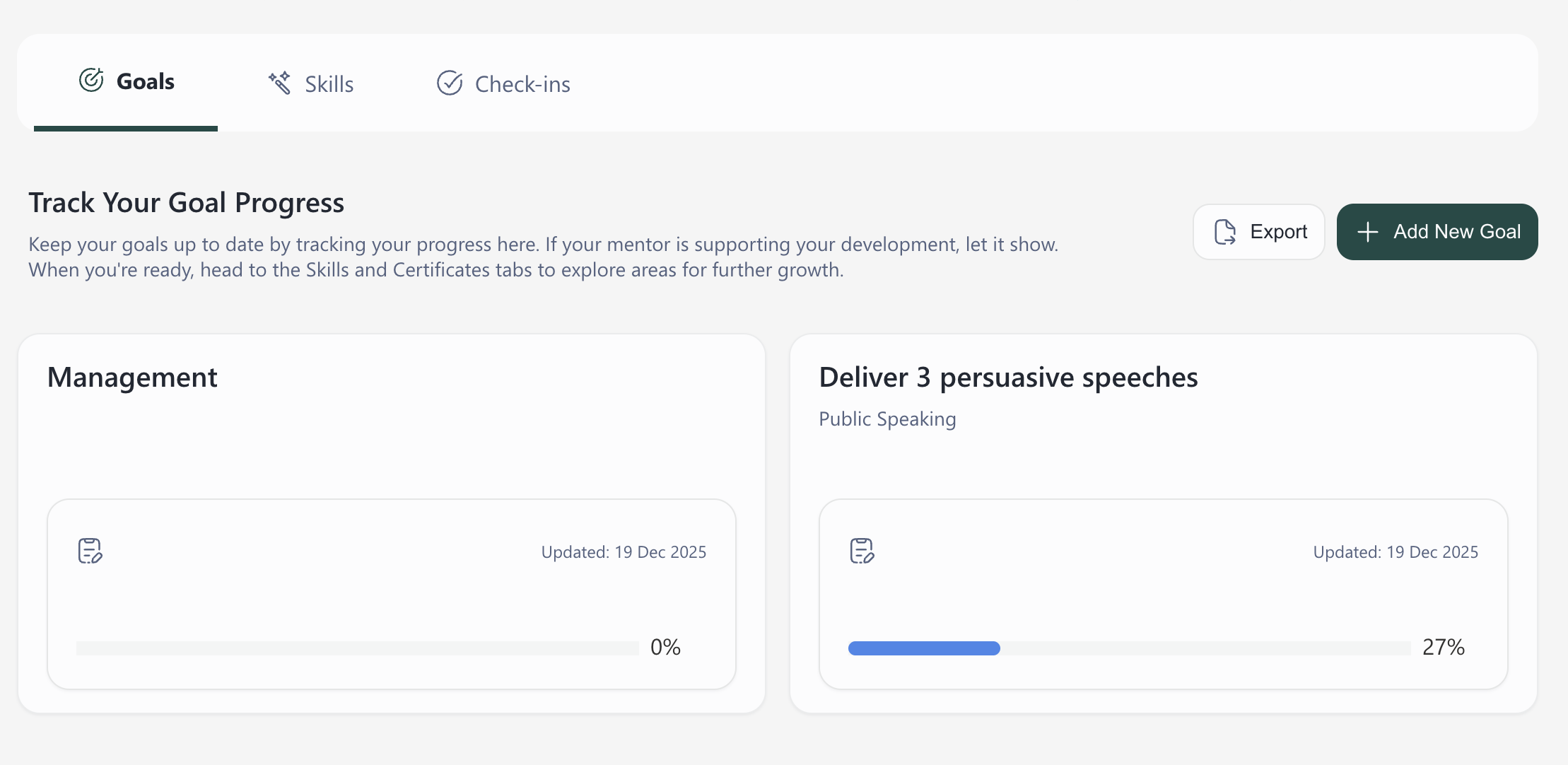
To add a new goal:
Click + Add New Goal.
In the Add New Goal window:
Category (Mandatory): Select a goal category from the dropdown menu. This category is used to match mentors and mentees based on shared development areas or subjects.
Objective (Optional): Enter a clear, specific statement or target for what the user wants to achieve.
Notes (Optional): Specify goal-related details such as timelines, success criteria, and mentor feedback requirements for accurate tracking and evaluation.
End Date (Optional): Set the due date for the goal to be achieved from the calendar, and confirm by clicking Apply.
Click + Create Goal.
The goal is created and appears on the Goals tab.
Skills
The Skills tab allows users to view the skills selected during profile registration, edit skill levels, add new skills, and export the skill list as a CSV file. Here, users can track which skills they’re building, update their progress as they go, and reflect on their growth.
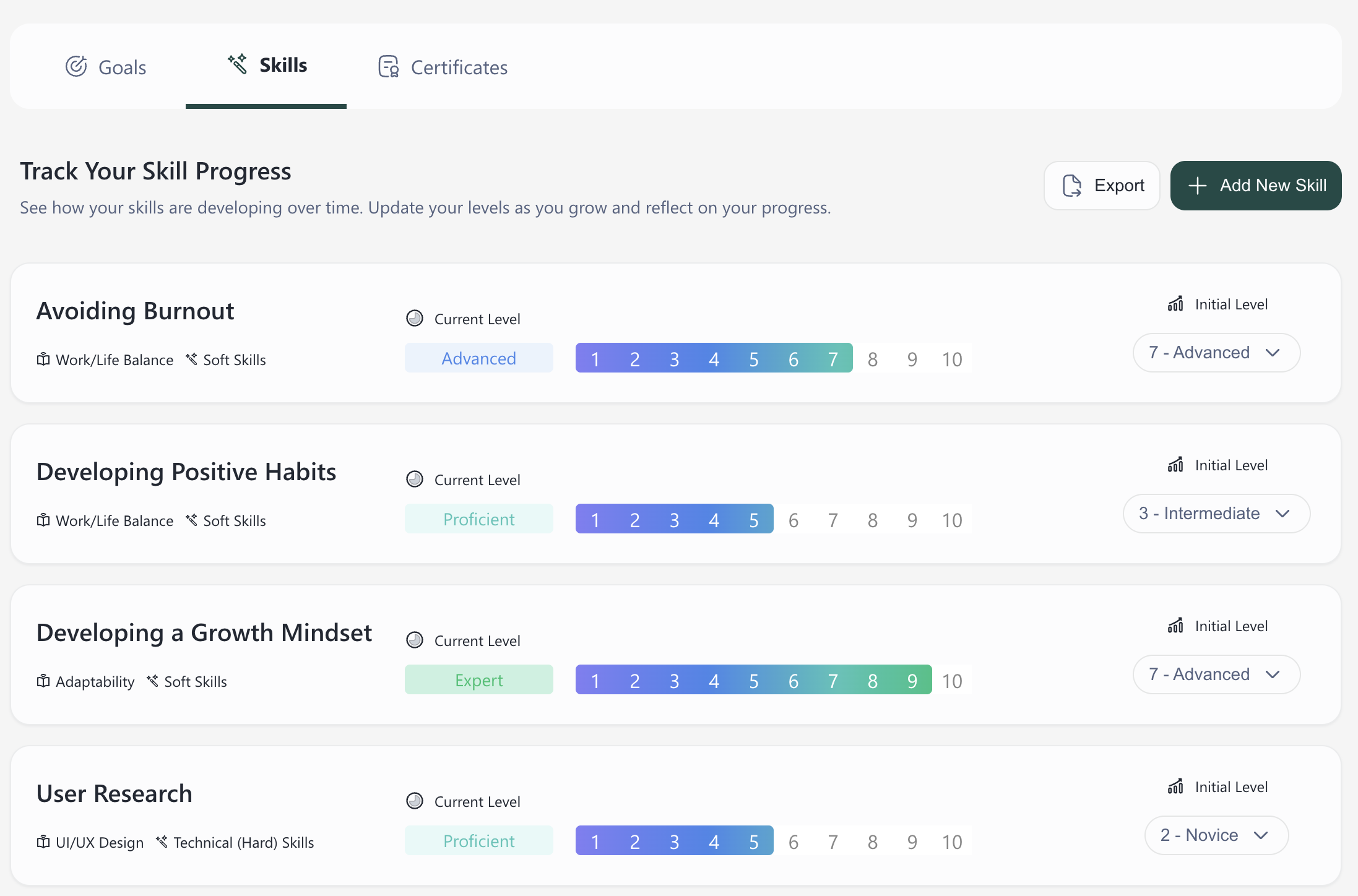
The Skills table displays the skill name and its category, the current level on a 1-to-10 scale, and the initial level — which can be edited using a dropdown menu.
To add a new skill:
Select the skill category (Soft Skills or Technical (Hard) Skills).
Search for a skill in the search bar or choose from the list of skills displayed under each category.
Click + Add New Skill.
The skill is created and appears on the Skills tab.
FAQs
Why did Guider launch My Progress?
My Progress was introduced to provide your users with a centralised platform to track their skills, goals, and certifications, enhancing their development experience and engagement with the mentoring programme.
Who has access to the My Progress page?
All of the users, including mentees and mentors, can access their own My Progress page to monitor and update their development journey.
Can users download evidence of their progress?
Yes. Users can export CSV files of their goals and skills, download any available certificates, and share their achievements on LinkedIn.
How does My Progress benefit our organization?
My Progress supports more effective programme management by offering transparency into your users’ development and engagement. This helps improve retention, drive meaningful outcomes, and align mentoring initiatives with broader business goals.
Where can I view the results of user progress?
Skill and goal progression reports can be found on the admin dashboard. Data collection on user progression began as soon as the My Progress page launched (August 2025).